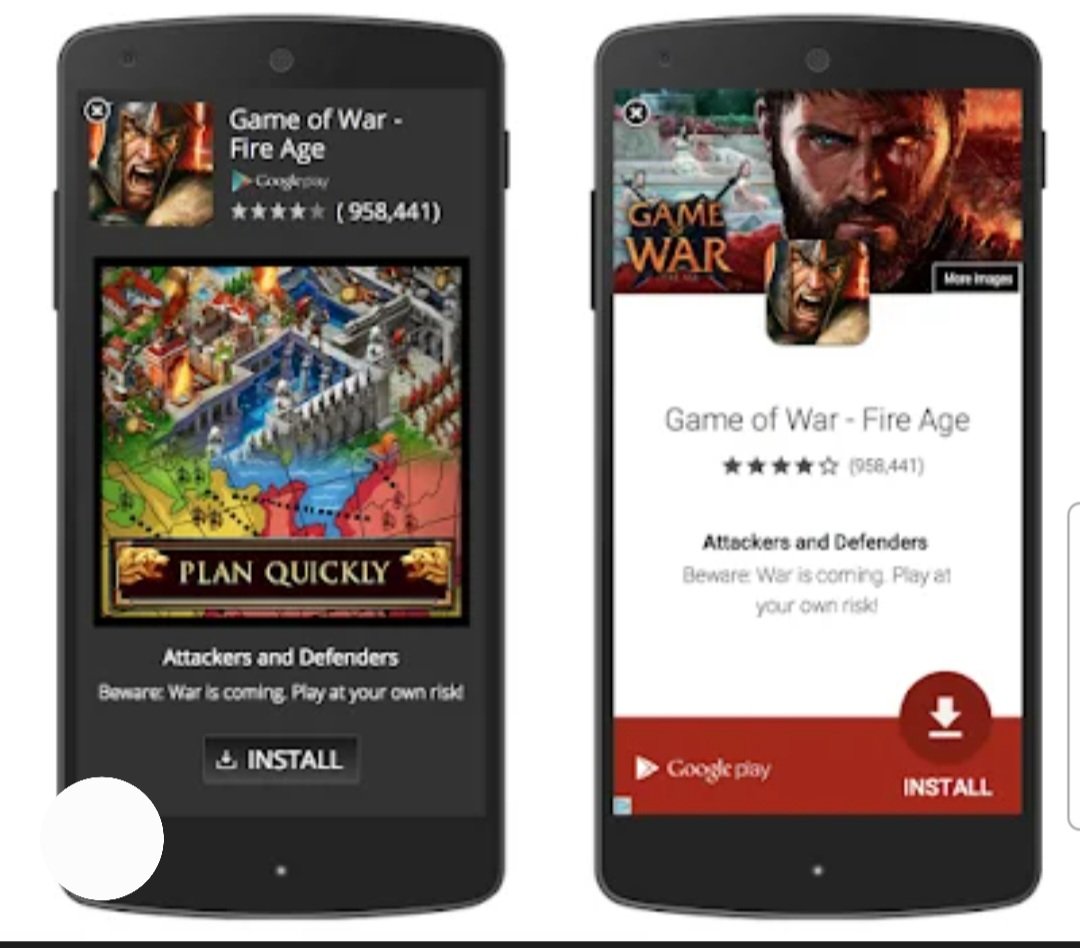
Off Your Mobile Full Screen Ads: A Complete Guide to Stop Annoying Ads on Your Phone
Have you ever unlocked your phone only to be attacked by a sudden full screen ad? 😤 You tap the screen, and boom — another ad pops up. This frustrating experience is becoming more common, especially on Android devices. If you’re searching for “off your mobile full screen ads”, you’re not alone — and the good news is, you can fix it.
In this detailed guide, I’ll explain why full screen ads appear on mobile phones, how they work, and practical ways to turn them off permanently.
What Are Mobile Full Screen Ads?
Mobile full screen ads are advertisements that cover your entire phone screen. Unlike normal banner ads, these appear:
On the home screen
While unlocking the phone
During app usage
Even when no app seems to be open
They often come from ad-supported apps, system settings, or even malware-like applications installed unknowingly.
Why Do Full Screen Ads Appear on Your Mobile?
1. Ad-Supported or Fake Apps
Many free apps earn money by aggressively showing ads. Some apps go too far and display full screen ads outside the app.
Common examples:
Flashlight apps
Wallpaper apps
Battery saver or cleaner apps
Game launchers
2. Browser Notifications Abuse
Sometimes you accidentally allow notifications from shady websites. These sites then send full screen or popup ads directly to your phone.
3. System Ads (Mostly on Budget Phones)
Some mobile brands show ads in:
Lock screen
File manager
Security apps
Themes app
4. Malware or Adware
If ads appear suddenly after installing an app, it may be adware running in the background.
How to Off Your Mobile Full Screen Ads (Step-by-Step)
1. Find and Remove the Problem App
This is the most effective solution.
How to check:
Go to Settings > Apps
Sort apps by Last Used
Look for suspicious apps you don’t remember installing
Uninstall them immediately
👉 Tip: If ads appear after installing a new app, remove it first.
2. Disable Full Screen Ads from App Permissions
Some apps use special permissions.
Steps:
Go to Settings > Apps > Special App Access
Check:
Appear on top
Display over other apps
Disable this permission for suspicious apps
3. Turn Off Browser Notification Ads
If ads come from Chrome or another browser:
For Chrome:
Open Chrome
Go to Settings > Notifications
Review allowed websites
Remove or block unknown sites
This alone stops many full screen popup ads.
4. Disable System Ads (If Available)
On some Android phones:
Open Settings
Search for Ads, Privacy, or Recommendations
Turn off:
Personalized ads
Receive recommendations
Lock screen ads
Not all brands allow full control, but disabling these reduces ads significantly.
5. Use a Trusted Ad Blocker or Security App
Install a reputable security or ad blocker app from the Play Store.
What to look for:
High ratings
Millions of downloads
No excessive permissions
These apps scan and block adware causing full screen ads.
How to Prevent Full Screen Ads in the Future
Avoid installing unknown apps
Read app reviews before downloading
Never allow notifications from random websites
Don’t grant “appear on top” permission unnecessarily
Keep your phone updated
A little caution goes a long way in keeping your phone ad-free.
Are Full Screen Ads Dangerous?
Not always — but they can be risky.
Potential dangers include:
Fake prize scams
Phishing links
Forced app installations
Data privacy risks
That’s why it’s important to off your mobile full screen ads as soon as you notice them.
Final Thoughts: Take Back Control of Your Phone
Full screen ads can turn a smart phone into a frustrating device. The good news is, once you identify the source, turning off mobile full screen ads is easy and effective. By uninstalling suspicious apps, blocking notification spam, and adjusting system settings, you can enjoy a clean, smooth mobile experience again.
Get code 👉 DNS.adguard.com